
The portal
One portal for the whole trip
TruckTracker has two halves: a phone app your drivers use on the road, and the admin portal your office runs on. Everything a driver records shows up here immediately.
In the truck
An iOS and Android app that records stops, arrivals, and lumper details, and captures BOLs, receipts, and photos at the dock.
In the office
A live view of every trip, tools to build and edit trips, stops, and drivers, documents filed against the stop they belong to, and running totals for miles, IFTA, and extra-stop pay.
Inside the admin portal
Every area of the admin portal, in the order you meet them.
- 01
Dashboard
Active trips, drivers on the road, documents waiting on review, and detention alerts — plus a running feed of what changed in the last few hours.
- 02
Today
The dispatcher's working view: every arrival and departure logged today across the fleet, newest first, rather than trip by trip.
- 03
Trips
Every trip with its stops, expenses, documents, and mileage. Edit trip metadata, fix a stop a driver mistyped, or add one that came in over the phone.
- 04
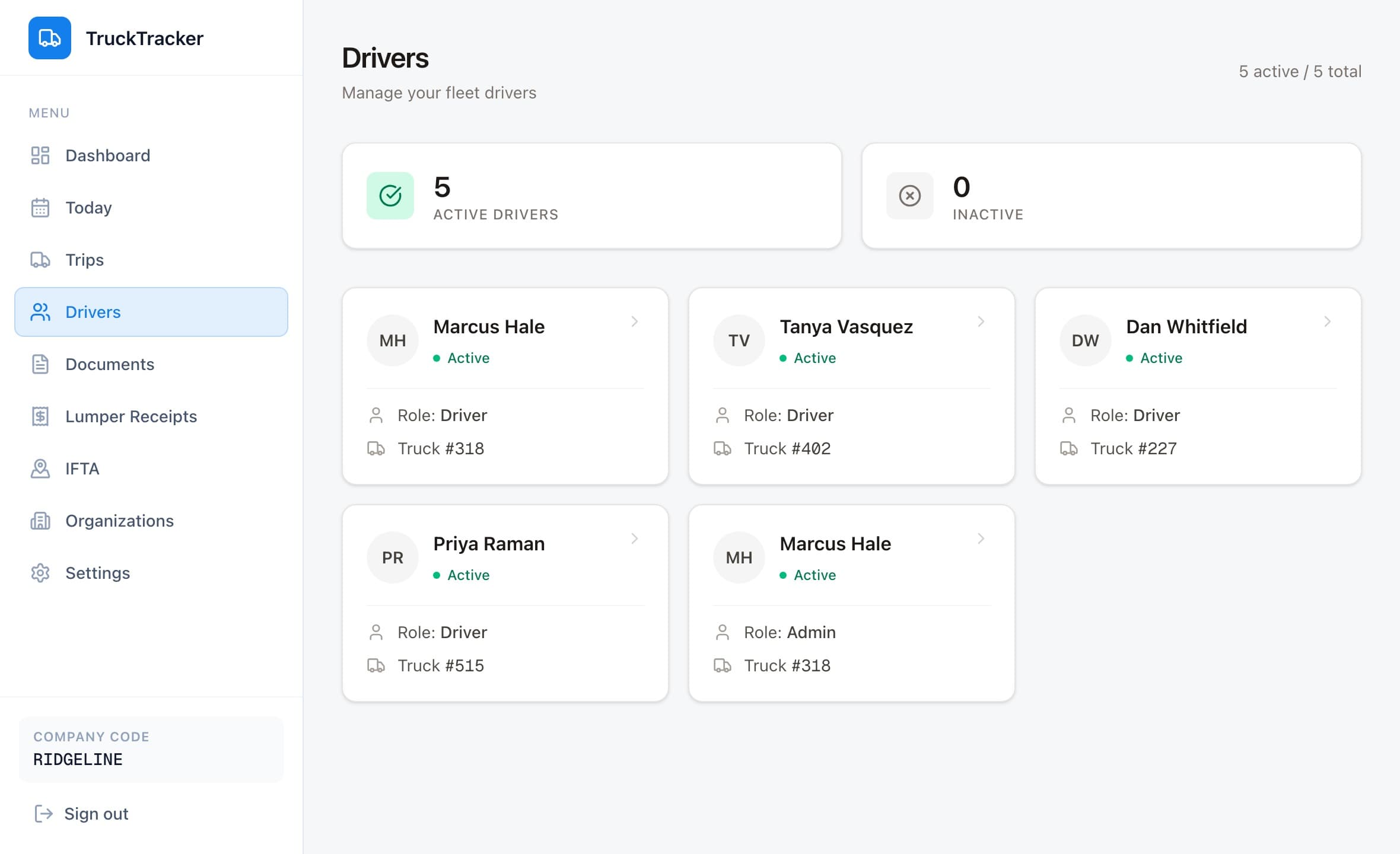
Drivers
Your roster, who is currently rolling, and each driver's trip history. Create and assign a trip to a driver straight from their profile.
- 05
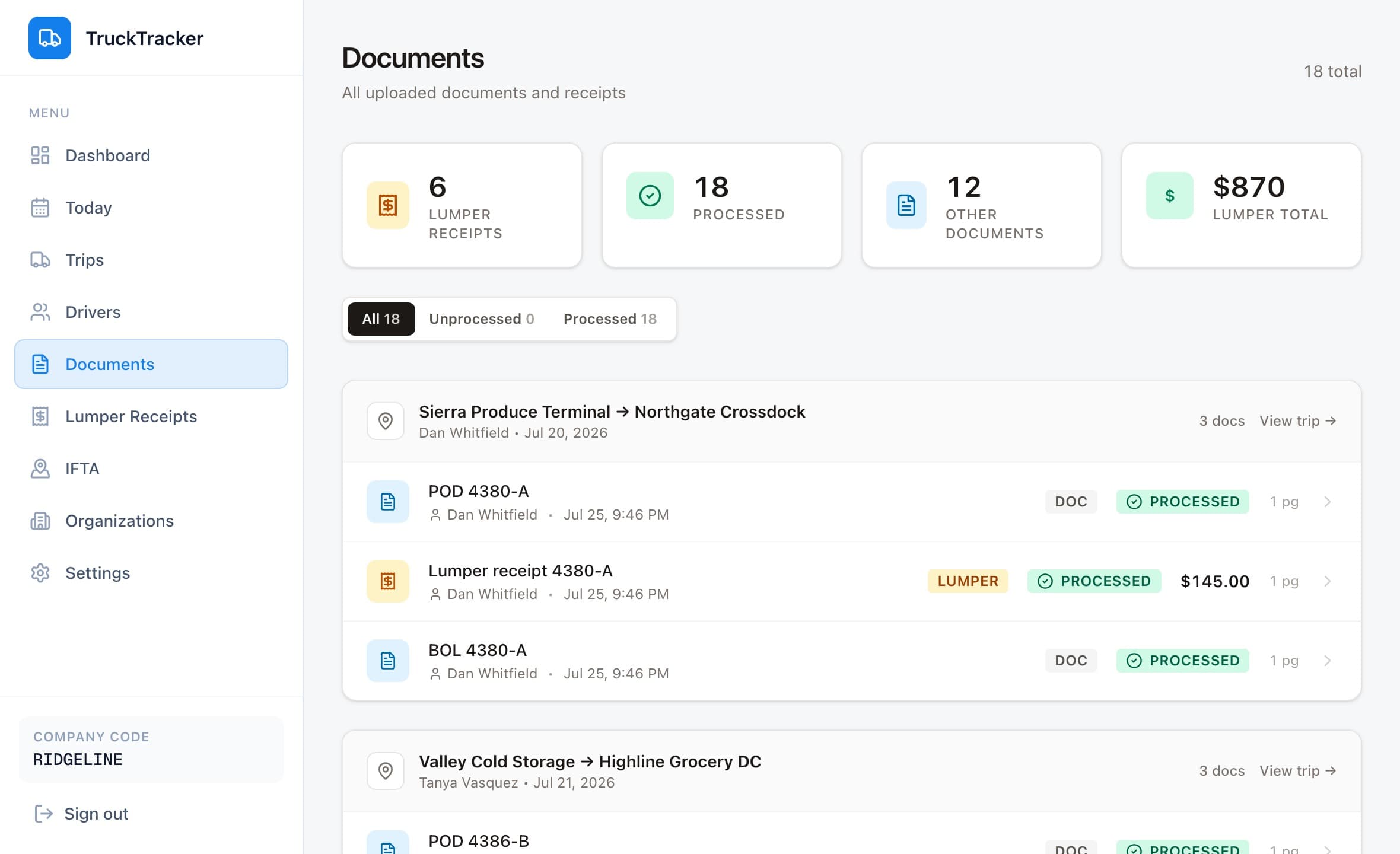
Documents
Every scanned page in one place, filed against the trip and stop it belongs to and filterable by what still needs processing, so nobody digs through a text thread for a BOL.
- 06
Lumper receipts
A dedicated queue of every lumper fee still missing its receipt, with the amount and who paid, so those charges do not quietly disappear.
- 07
IFTA
Miles by jurisdiction from the driven GPS track, ready for quarterly fuel-tax filing instead of being reconstructed from odometer photos.
- 08
Settings
The rules the app calculates against — fleet timezone, extra-stop rate, detention threshold and hourly rate — set once for the company and applied to every trip.
Documents
The BOL is where the trip is
Every page a driver scans lands against the stop it belongs to, so nobody scrolls a text thread looking for the one that proves the load was delivered.
Lumper receipts
The charges that usually go missing
Lumper fees get paid at the dock and forgotten by the time the trip closes. Every one still missing its receipt gets listed here — the amount, the stop, the driver, and who paid — until the paperwork catches up.
What a trip looks like end to end
Nobody types the report at the end — it is written as the trip happens.
- 01Dispatch
Dispatch creates the trip with the first stop, or the driver starts one from the truck.
- 02Driver
At each stop the driver records arrival, the stop type, lumper details, and scans the paperwork.
- 03Driver
Expenses — fuel, tolls, repairs, lumper fees — are captured with a photo of the receipt.
- 04The app
Mileage accumulates from the routed distance between stops as the trip progresses.
- 05Both
The driver closes the trip out and shares the finished report; dispatch reviews it in the portal.
Ready to try it with a real trip?
Create your company, share the code with one driver, and run a single load through it before you roll it out to the whole fleet.